
The first step in the workflow process is to create a Board Item. Below is a quick screencast, with full instructions below.
Step 1: Add New Item
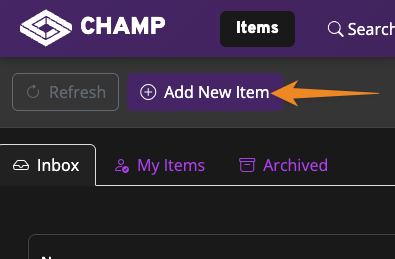
Select the “Add New Item” button to begin the process.
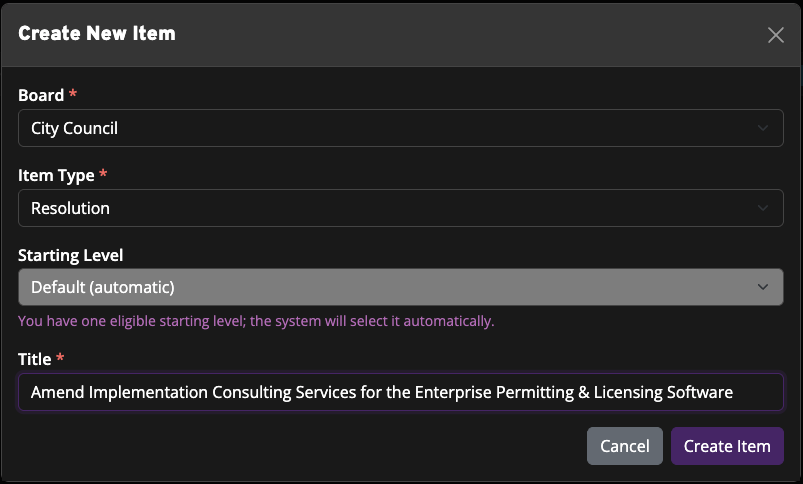
Next, select the Board, the Item Type and give your Board Item a title. When you’re ready to create the item, select the “Create Item” button in the form.
Step 2: Fill Out The Form
Select the Board Item you just created to fill out and then submit the form.
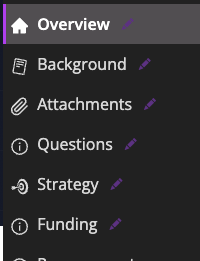
On the left are a series of sections. If there’s a pencil next to the section, then there are questions you can answer in that section.
Step 3: Submit The Board Item
Once you’ve completed all the questions, your final step is to submit the Board Item for approval. To do that, simply select the “Staff: In Process” drop down and then select “Request Approval”.
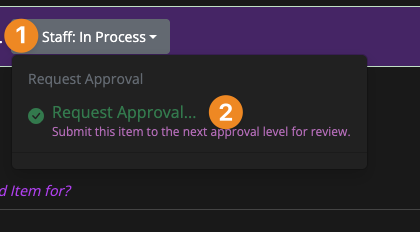
This will launch a new dialogue where you can add a note to your submission. Choose the green “Request Approval” button and you’re all done.